10 September 2017
16 Juli 2015
Korean Drama Airing in July
Hello Monster (I Remember You)
Description
Lee Hyun (Seo In-Guk) is an excellent criminal profiler, but he possesses a spiteful tongue. Cha Ji-An (Jang Na-Ra) is an elite detective. She observes Lee Hyun. They work on solving cases and develop a romantic relationship
Genre: Romance Thriller Suspense

Lee Hyun (Seo In-Guk) is an excellent criminal profiler, but he possesses a spiteful tongue. Cha Ji-An (Jang Na-Ra) is an elite detective. She observes Lee Hyun. They work on solving cases and develop a romantic relationship
Genre: Romance Thriller Suspense
The Time We Were Not In Love
Description
Oh Ha-Na (Ha Ji-Won) and Choi Won (Lee Jin-Wook) are both 34-years-old. They have been friends for 17 years. Oh Ha-Na is currently a career woman with an honest and confident personality. Choi Won works as an assistant purser for an airline. He has always helped Oh Ha-Na whenever she got into trouble. Cha Seo-Hoo (Yoon Gyun-Sang) is a pianist with a free spirit and Lee So-Eun (Choo Soo-Hyun) is a cabin attendant for an airline. Will Oh Ha-Na and Choi Won find love?
Genre: Drama Romance
Mask

Description
Oh Ha-Na (Ha Ji-Won) and Choi Won (Lee Jin-Wook) are both 34-years-old. They have been friends for 17 years. Oh Ha-Na is currently a career woman with an honest and confident personality. Choi Won works as an assistant purser for an airline. He has always helped Oh Ha-Na whenever she got into trouble. Cha Seo-Hoo (Yoon Gyun-Sang) is a pianist with a free spirit and Lee So-Eun (Choo Soo-Hyun) is a cabin attendant for an airline. Will Oh Ha-Na and Choi Won find love?
Genre: Drama Romance
Mask
.jpg)
Description
Ji-Sook (Soo-Ae) goes through a difficult period, due to her father's private loan. She begins living as Eun-Ha. Eun-Ha is from a wealthy family and looks like Ji-Sook. When Min-Woo (Ju Ji-Hoon) was only 7 years old, he became the successor of a large corporation which his family ran. Due to his position, he cannot reveal his feelings. Through his family, he meets Eun-Ha. He notices she is different from other wealthy woman that he has met. Min-Woo has feelings for her.
Genre: Drama Romance
Orange Marmalade

Description
200 years ago, humans and vampires finalized a peace treaty, but they still do not get along well with each other. In the present day, Jae-Min (Yeo Jin-Goo) is a popular high school student. He falls in love with transfer student Baek Ma-Ri. Baek Ma-Ri though hides her true identity as a vampire.
Genre: Comedy Drama Romance
Hide Identity

Description
A drama about Investigation Team 5 which was established to deal with crime in a more eager manner through stake outs.
Genre: Mystery Crime
My Love Eun-Dong

Description
This drama is about a man who has it all, yet is unable to possess the love of a woman he is unable to forget, whom he has been loving for the past 20 years.
Genre: Romance melodrama
I Order You

Description
Yeo Gook Dae (U-Know Yunho) is a talented chef who is sassy and considerate but heartbroken in the past since his divorce. His heart later on gets healed when he falls in love again. 28-year-old Park Song Ah (Kim Ga Eun) is idling at home after quitting her job. She goes to a homemade dosirak (lunchbox) shop as her brother’s request and meets three attractive men there. The pretty and delicious food that they make touch her, and she gets her heart stolen by one of them. A cute funny story about a couple who bicker constantly but their relationship gradually blossoms into pure innocent love.
Genre: Comedy Romance
Scholar Who Walks the Night

Description
A daughter from a collapsed noble family, due to being branded a traitor, dresses up like a man and goes out to sell books. She meets an attractive scholar walking at night, but the scholar is actually vampire.
Genre: Fantasy Historical Romance
Hwajung

Description
Drama series follows the rise and fall of Princess Jeongmyeong. Princess Jeongmyeong was born to King Seongjo of the Joseon Dynasty period. After her younger brother is killed by older stepbrother, Prince Gwanghae, she falls from her position as a princess.
Genre: Historical Romance
Watch them with English Sub HERE ...
Or HERE..
23 Juni 2014
How to Instal Kerberos in Linux/Ubuntu (Cara Instal Kerberos di Linux/Ubuntu)
Kerberos is a network authentication system based on the principal of a trusted third party. The other two parties being the user and the service the user wishes to authenticate to. Not all services and applications can use Kerberos, but for those that can, it brings the network environment one step closer to being Single Sign On (SSO).
This section covers installation and configuration of a Kerberos server, and some example client configurations.
If you are new to Kerberos there are a few terms that are good to understand before setting up a Kerberos server. Most of the terms will relate to things you may be familiar with in other environments:
To put the pieces together, a Realm has at least one KDC, preferably two for redundancy, which contains a database of Principals. When a user principal logs into a workstation, configured for Kerberos authentication, the KDC issues a Ticket Granting Ticket (TGT). If the user supplied credentials match, the user is authenticated and can then request tickets for Kerberized services from the Ticket Granting Server (TGS). The service tickets allow the user to authenticate to the service without entering another username and password.
- Principal: any users, computers, and services provided by servers need to be defined as Kerberos Principals.
- Instances: are used for service principals and special administrative principals.
- Realms: the unique realm of control provided by the Kerberos installation. Usually the DNS domain converted to uppercase (EXAMPLE.COM).
- Key Distribution Center: (KDC) consist of three parts, a database of all principals, the authentication server, and the ticket granting server. For each realm there must be at least one KDC.
- Ticket Granting Ticket: issued by the Authentication Server (AS), the Ticket Granting Ticket (TGT) is encrypted in the user's password which is known only to the user and the KDC.
- Ticket Granting Server: (TGS) issues service tickets to clients upon request.
- Tickets: confirm the identity of the two principals. One principal being a user and the other a service requested by the user. Tickets establish an encryption key used for secure communication during the authenticated session.
- Keytab Files: are files extracted from the KDC principal database and contain the encryption key for a service or host.
Before installing the Kerberos server a properly configured DNS server is needed for your domain. Since the Kerberos Realm by convention matches the domain name, this section uses the example.com domain configured in the section called “Primary Master”.
Also, Kerberos is a time sensitive protocol. So if the local system time between a client machine and the server differs by more than five minutes (by default), the workstation will not be able to authenticate. To correct the problem all hosts should have their time synchronized using the Network Time Protocol (NTP). For details on setting up NTP see the section called “Time Synchronisation with NTP”.
The first step in installing a Kerberos Realm is to install the krb5-kdc and krb5-admin-server packages. From a terminal enter:
Next, create the new realm with the kdb5_newrealm utility:
Also, Kerberos is a time sensitive protocol. So if the local system time between a client machine and the server differs by more than five minutes (by default), the workstation will not be able to authenticate. To correct the problem all hosts should have their time synchronized using the Network Time Protocol (NTP). For details on setting up NTP see the section called “Time Synchronisation with NTP”.
The first step in installing a Kerberos Realm is to install the krb5-kdc and krb5-admin-server packages. From a terminal enter:
sudo apt-get install krb5-kdc krb5-admin-server
You will be asked at the end of the install to supply a name for the Kerberos and Admin servers, which may or may not be the same server, for the realm.Next, create the new realm with the kdb5_newrealm utility:
sudo krb5_newrealm
The questions asked during installation are used to configure the
Your new Kerberos Realm is now ready to authenticate clients.
/etc/krb5.conf file. If you need to adjust the Key Distribution Center (KDC) settings simply edit the file and restart the krb5-kdc daemon.- Now that the KDC running an admin user is needed. It is recommended to use a different username from your everyday username. Using the kadmin.local utility in a terminal prompt enter:
sudo kadmin.localIn the above example steve is the Principal, /admin is an Instance, and @EXAMPLE.COM signifies the realm. The"every day" Principal would be steve@EXAMPLE.COM, and should have only normal user rights.Authenticating as principal root/admin@EXAMPLE.COM with password. kadmin.local:addprinc steve/adminWARNING: no policy specified for steve/admin@EXAMPLE.COM; defaulting to no policy Enter password for principal "steve/admin@EXAMPLE.COM": Re-enter password for principal "steve/admin@EXAMPLE.COM": Principal "steve/admin@EXAMPLE.COM" created. kadmin.local:quit
![[Note]](file:///D:/KJ%20Tugas/kerberos/Kerberos_files/note.png)
Replace EXAMPLE.COM and steve with your Realm and admin username. - Next, the new admin user needs to have the appropriate Access Control List (ACL) permissions. The permissions are configured in the
/etc/krb5kdc/kadm5.aclfile:
steve/admin@EXAMPLE.COM *This entry grants steve/admin the ability to perform any operation on all principals in the realm. - Now restart the krb5-admin-server for the new ACL to take affect:
sudo /etc/init.d/krb5-admin-server restart - The new user principal can be tested using the kinit utility:
kinit steve/adminAfter entering the password, use the klist utility to view information about the Ticket Granting Ticket (TGT):steve/admin@EXAMPLE.COM's Password:
klistYou may need to add an entry into theCredentials cache: FILE:/tmp/krb5cc_1000 Principal: steve/admin@EXAMPLE.COM Issued Expires Principal Jul 13 17:53:34 Jul 14 03:53:34 krbtgt/EXAMPLE.COM@EXAMPLE.COM/etc/hostsfor the KDC. For example:
192.168.0.1 kdc01.example.com kdc01Replacing 192.168.0.1 with the IP address of your KDC. - In order for clients to determine the KDC for the Realm some DNS SRV records are needed. Add the following to
/etc/named/db.example.com:
_kerberos._udp.EXAMPLE.COM. IN SRV 1 0 88 kdc01.example.com. _kerberos._tcp.EXAMPLE.COM. IN SRV 1 0 88 kdc01.example.com. _kerberos._udp.EXAMPLE.COM. IN SRV 10 0 88 kdc02.example.com. _kerberos._tcp.EXAMPLE.COM. IN SRV 10 0 88 kdc02.example.com. _kerberos-adm._tcp.EXAMPLE.COM. IN SRV 1 0 749 kdc01.example.com. _kpasswd._udp.EXAMPLE.COM. IN SRV 1 0 464 kdc01.example.com.See Chapter 7, Domain Name Service (DNS) for detailed instructions on setting up DNS.![[Note]](file:///D:/KJ%20Tugas/kerberos/Kerberos_files/note.png)
Replace EXAMPLE.COM, kdc01, and kdc02 with your domain name, primary KDC, and secondary KDC.
Once you have one Key Distribution Center (KDC) on your network, it is good practice to have a Secondary KDC in case the primary becomes unavailable.
The Secondary KDC should now be able to issue tickets for the Realm. You can test this by stopping the krb5-kdc daemon on the Primary KDC, then use kinit to request a ticket. If all goes well you should receive a ticket from the Secondary KDC.
- First, install the packages, and when asked for the Kerberos and Admin server names enter the name of the Primary KDC:
sudo apt-get install krb5-kdc krb5-admin-server - Once you have the packages installed, create the Secondary KDC's host principal. From a terminal prompt, enter:
kadmin -q "addprinc -randkey host/kdc02.example.com"![[Note]](file:///D:/KJ%20Tugas/kerberos/Kerberos_files/note.png)
After, issuing any kadmin commands you will be prompted for yourusername/admin@EXAMPLE.COM principal password. - Extract the keytab file:
kadmin -q "ktadd -k keytab.kdc02 host/kdc02.example.com" - There should now be a
keytab.kdc02in the current directory, move the file to/etc/krb5.keytab:
sudo mv keytab.kdc02 /etc/krb5.keytabAlso, you can list the principals in a Keytab file, which can be useful when troubleshooting, using the klist utility:![[Note]](file:///D:/KJ%20Tugas/kerberos/Kerberos_files/note.png)
If the path to the keytab.kdc02file is different adjust accordingly.
sudo klist -k /etc/krb5.keytab - Next, there needs to be a
kpropd.aclfile on each KDC that lists all KDCs for the Realm. For example, on both primary and secondary KDC, create/etc/krb5kdc/kpropd.acl:
host/kdc01.example.com@EXAMPLE.COM host/kdc02.example.com@EXAMPLE.COM - Create an empty database on the Secondary KDC:
sudo kdb5_util -s create - Now start the kpropd daemon, which listens for connections from the kprop utility. kprop is used to transfer dump files:
sudo kpropd -S - From a terminal on the Primary KDC, create a dump file of the principal database:
sudo kdb5_util dump /var/lib/krb5kdc/dump - Extract the Primary KDC's keytab file and copy it to
/etc/krb5.keytab:
kadmin -q "ktadd -k keytab.kdc01 host/kdc01.example.com" sudo mv keytab.kdc01 /etc/kr5b.keytab![[Note]](file:///D:/KJ%20Tugas/kerberos/Kerberos_files/note.png)
Make sure there is a host for kdc01.example.com before extracting the Keytab. - Using the kprop utility push the database to the Secondary KDC:
sudo kprop -r EXAMPLE.COM -f /var/lib/krb5kdc/dump kdc02.example.comYou may also want to create a cron job to periodically update the database on the Secondary KDC. For example, the following will push the database every hour:![[Note]](file:///D:/KJ%20Tugas/kerberos/Kerberos_files/note.png)
There should be a SUCCEEDED message if the propagation worked. If there is an error message check /var/log/syslogon the secondary KDC for more information.
# m h dom mon dow command 0 * * * * /usr/sbin/kdb5_util dump /var/lib/krb5kdc/dump && /usr/sbin/kprop -r EXAMPLE.COM -f /var/lib/krb5kdc/dump kdc02.example.com - Back on the Secondary KDC, create a stash file to hold the Kerberos master key:
sudo kdb5_util stash - Finally, start the krb5-kdc daemon on the Secondary KDC:
sudo /etc/init.d/krb5-kdc start
This section covers configuring a Linux system as a Kerberos client. This will allow access to any kerberized services once a user has successfully logged into the system.
In order to authenticate to a Kerberos Realm, the krb5-user and libpam-krb5 packages are needed, along with a few others that are not strictly necessary but make life easier. To install the packages enter the following in a terminal prompt:
sudo apt-get install krb5-user libpam-krb5 libpam-ccreds auth-client-config
The auth-client-config package allows simple configuration of PAM for authentication from multiple sources, and thelibpam-ccreds will cache authentication credentials allowing you to login in case the Key Distribution Center (KDC) is unavailable. This package is also useful for laptops that may authenticate using Kerberos while on the corporate network, but will need to be accessed off the network as well.
To configure the client in a terminal enter:
The dpkg-reconfigure adds entries to the
sudo dpkg-reconfigure krb5-config
You will then be prompted to enter the name of the Kerberos Realm. Also, if you don't have DNS configured with KerberosSRV records, the menu will prompt you for the hostname of the Key Distribution Center (KDC) and Realm Administration server.The dpkg-reconfigure adds entries to the
/etc/krb5.conf file for your Realm. You should have entries similar to the following:[libdefaults]
default_realm = EXAMPLE.COM
...
[realms]
EXAMPLE.COM = }
kdc = 192.168.0.1
admin_server = 192.168.0.1
}
You can test the configuration by requesting a ticket using the kinit utility. For example:kinit steve@EXAMPLE.COM
Password for steve@EXAMPLE.COM:
When a ticket has been granted, the details can be viewed using klist:klist
Ticket cache: FILE:/tmp/krb5cc_1000
Default principal: steve@EXAMPLE.COM
Valid starting Expires Service principal
07/24/08 05:18:56 07/24/08 15:18:56 krbtgt/EXAMPLE.COM@EXAMPLE.COM
renew until 07/25/08 05:18:57
Kerberos 4 ticket cache: /tmp/tkt1000
klist: You have no tickets cached
Next, use the auth-client-config to configure the libpam-krb5 module to request a ticket during login:sudo auth-client-config -a -p kerberos_example
You will should now receive a ticket upon successful login authentication.16 Juni 2014
How To Make Pancake
The following ingredients will make about 8 10-inch (25cm) pancakes (more or fewer, depending on the size). You may change the amounts of ingredients according to the number you wish to serve.
- 2 cups (18oz/510g) plain or all-purpose flour (See tips below)
- 2 eggs
- 1 1/2 cups (350ml) of milk
- 1/2 teaspoon baking powder
- 2 tablespoons butter/vegetable oil
- 5 tablespoons sugar (optional)
- 1/2 teaspoon of vanilla extract
- 1/4 to 1/2 teaspoon of salt (optional)
- Crack eggs into a bowl and beat until fluffy. Add in the dry ingredients, (omit baking soda if using self-raising flour), and milk. Do not stir mixture at this point.
- Melt the butter in a microwave-safe bowl. Make sure that it’s completely melted; about a minute is sufficient.
- Add the butter and the milk to the mix. Stir gently, leaving some small clumps of dry ingredients in the batter. Do not blend until completely smooth. If your batter is smooth, your pancakes will be tough and flat as opposed to fluffy.
- Heat the frying pan to a medium low flame. If you have an initial “pancake” setting on your stove, use that. Be sure to use non-stick spray, or a pat of butter so the pancakes won’t stick.
- Sprinkle a few flecks of water onto your pan. If it ‘dances’, or jumps from the pan with a sizzle, the pan is ready for the batter.
- Pour about 3 tablespoons to 1/4 cup batter from the tip of a large spoon or from a pitcher onto the hot griddle(Or your greased frying pan). The amount you pour will decide the final size of your pancakes. It is best to begin with less batter, and then slowly pour more batter onto the pan to increase the pancake size.
- Cook for about two minutes or until the pancake is golden. You should see bubbles form and then pop around the edges. When the bubbles at the edge of the batter pop and a hole is left that does not immediately close up, flip the cake gently.
- Cook the other side until golden and remove. Want a deeper color? Repeat the steps for another thirty seconds per side until the pancake is done enough for your tastes.
- Enjoy! Try adding butter, peanut butter, syrup, jelly, chocolate chips or fruit to your pancakes for a different, more exciting flavor. The varieties are endless. These are the most delectable pancakes you will ever taste.
20 April 2014
Free Download Adobe Reader 11.0.06
Adobe Reader adalah sebuah software yang memungkinkan kalian untuk
membuka serta melihat file berformat PDF, dulu Adobe Reader dikenal dengan nama
Acrobat Reader. Kalian dapat membaca, memberi notasi, mencari, verifikasi,
menandai secara digital, dan mencetak data dengan format Portable Document
Format (PDF).
Adobe Reader merupakan satu-satunya
file viewer PDF yang bisa membuka dan berinteraksi dengan semua dokumen PDF.
Kalian pasti akan membutuhkan software ini sewaktu-waktu, apalagi untuk kalian
yang kuliah atau bekerja. Fungsi lain dari Adobe Reader adalah mengarang,
menyimpan, serta membagikan dokumen menggunakan Acrobat.com dan mengulas
dokumen menggunakan commenting tools seperti: sticky notes, highlighting,
lines, shapes, dan stamps.
Beberapa fitur yang ditawarkan oleh
Adobe Reader adalah:
·
Immersive Flash video,
konten dan aplikasi dengan modus layar penuh.
·
Low bandwidth, video
berkualitas tinggi dengan teknologi kompresi canggih.
·
Blend modes, radial
gradient, dan stroke perangkat tambahan.
·
Gambar tambahan format:
GIF, Progressive JPEG, dan PNG.
·
Dan masih banyak lagi.
18 April 2014
Karnavail IT Season III HIMA MISI IBI Darmajaya
Event ini dalah ivent tahunan dari Himpunan Mahasiswa Manajemen Informatika dan Sistem Informasi IBI Darmajaya Bandar Lampung. Event kali ini adalah penyelenggaraan yang ketiga kalinya dan merupakan salah Satu event besar yang termasuk dalam rangkaian ancara Dies Natalis IBI Darmajaya tahun 2014.Ada banyak sub event yang terdapat dalam event ini untuk berbagai kalangan mulai dari siswa/i SMA/SMK, Mahasiswa, maupun kalangan masyarakat umum yang ingin mengenal lebih jauh mengenai dunia IT.
>> Bazar IT se-Indonesia
>> Lomba Robo Line Follower tingkat
SMA/SMK/MA sederajat se-Nasional
>> Lomba Web Localhost untuk umum
se-Lampung
>> Kompetisi Cerdas Cermat Komputer
IX se-sumbagsel tingkat SMA/SMK/MA sederajat
>> Seminar E- Library untuk guru ,
dan calon guru
>> Workshop Cyber Security untuk
umum
>> Seminar Branding and Digital
Marketing untuk pebisnis dan umum.
>> Pelatihan Web Dinamis untuk
mahasiswa MI dan SI IBI Darmajaya
Soo.... Tunggu Apalagi, buruan daftar dan nikmati Event ini bersama Kami......!!!
Lead Yourself For Your Bright Future..!
Photoshop Brush Tool: A Basic Guide
This time I've got for you a really basic guide, which is useful for beginners and people interested in learning a little bit more deeply the power of Photoshop's Brush Tool. Every single Photoshop user has dealt with the brush tool at least once, but not everyone knows how to explode its full potential.
In this guide, you'll learn how to use the brush presets, create your own brush from scratch and modify its properties, play with blend modes and pressure controls, besides some useful tricks. How much do you know about Photoshop's Brushes?
Psd Plus Membership
Want access to the full PSD files and downloadable copies of every tutorial, including this one? Join Psd Plus for just $19/month. Below is one of the brushes we'll be creating in this tutorial.

What is it?
The Brush tool is a basic painting tool. It works like a traditional drawing tool by applying the color using strokes. It's located in the standard Tool Bar and its default shortcut is the letter B.
The Brush Tool works by adding a shaped mark on a layer, and if you continue pressing the mouse button or the pen on a tablet, several marks will be added creating a stroke until you release the pressure. The essentials options for the brush tool are: Brush Tip Shape, Blending Mode, Opacity and Flow. You must understand those concepts before moving forward with the advanced settings.
Photoshop includes several built-in presets, that are in fact pre-made brushes ready to use.

Part 1 - Basics
Brush Tip
This is the most basic option for any Photoshop User, the Brush Tip settings allow you to modify the way to add colors on a Photoshop document using the Brush Tool. By clicking on the Brush Preset Picker in the default Options Panel you will see several built-in presets. On many of the presets you can easily adjust two very important values:
- Master Diameter increases or decreases the size of the brush tip. The default shortcuts to increase or decrease are the Left Bracket key and the Right Bracket key respectively. Photoshop CS4 enables a dynamic way of doing it by Ctrl + Option (Mac) + Click or Alt + Right Click (Win) and Drag.
- Hardness increases or decreases the brush tip's border strength, 0% means a really soft border (color fades out) and 100% a precise border. The shortcuts to increase or decrease hardness percentage are the Left Bracket key and the Right Bracket key respectively. In CS4 you can dynamically modify this value by Ctrl + Option + Shift (Mac) + Click or Alt + Shift + Right Click (Win) and Drag.
You can even combine Foreground and Background colors (we will see this feature forward). Most of the time the color that is applied by using the brush tip is the Foreground Color.

Preset Picker Contextual Menu
There are many useful tools at the Brush Preset Picker menu including Create a New Preset, Edit it, and Delete. Then there are some options to display the list of brushes in the Preset Picker panel, below there are several examples of this. Besides, you can easily Manage the Brush list by loading, saving and replacing brushes in the list, or Append one of the existing Brush collections. We will see more about preset creation shortly.

Brush Blending Modes
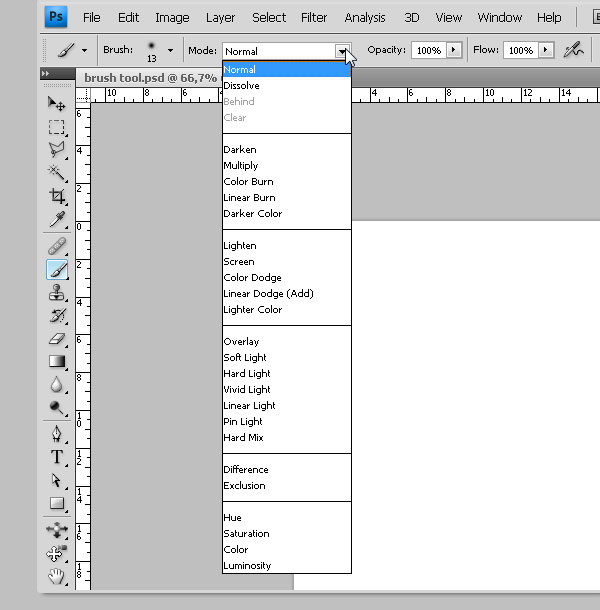
Each time you paint something using the Brush Tool you can chose a Blending Mode for the stroke. A Blending Mode is a way to mix the colors with the object(s) behind them using several mathematical formulas working over the RGB values of each pixel. Let's try some of them.

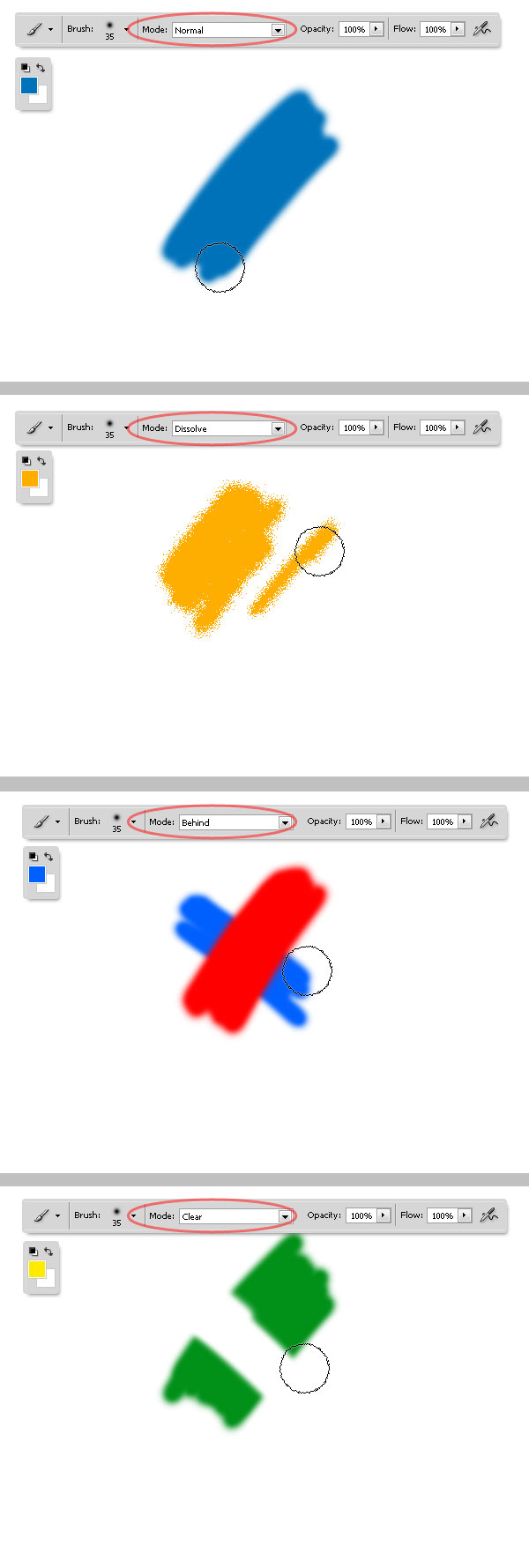
Modes: Normal, Dissolve, Behind and Clear
Let's review some of the basic Blending Modes.
- The first on the list is the Normal Mode, which paints the color as is without applying any transformation to the color pixels.
- The Dissolve Mode adds some noise at the edge of the brush stroke.
- Behind Mode paints behind an existing stroke even if they are both on the same layer.
- By using the Clear Mode you can delete a section of an existing stroke.

More Blending Modes
The Following Blending modes are just the same that can be applied to the Layers, below you can see some examples of blending modes, and some applications. They are fairly useful for adding color to objects (Darken, Multiply, Overlay) or add some lights (Lighten, Color Dodge). You have a lot to experiment with here, no matter how many years you have been using Photoshop, you never stop learning about Blending Modes.

Opacity
The Opacity Value is a percentage of transparency, 100% means a full color stroke, a small percentage means a more transparent painting.

3. Flow
The Flow value is a percentage that sets the rate of color applied. Each time you press the mouse button the amount of color applied is controlled by the Flow percentage, besides it cannot exceed the Opacity percentage unless you click again in the same place.

Brushes Panel
The Brushes Panel is the right place to create, edit, save and load a particular brush behavior or Brush Preset. You can customize several things here like the brush tip shape, scattering, opacity jitter, flow jitter, Background/Foreground jitter, configure controls for each variation and more.
To show the Brushes Panel go to Window > Brushes, or press the F5 key. You need to select the Brush Tool on the Tools Panel to enable the Brush Preset options.
As you can see, as soon as you show the Brushes Panel you can click over the Brush Presets option on the left and then in the main area a list of all the active brushes. Try them before moving forward in this guide, paint some random strokes using different presets and see what happens. Next we'll create a Custom Brush, and apply several variations to it.

Creating a Brush Tip from an Image
One of the most powerful features of Photoshop is the ability to create custom brushes from scratch using any image as a source. This time we'll make a brush using this image of a nice leaf.
Step 1
Open your image in Photoshop, and double-click on the "Background" Layer in the layers palette to make it editable. Then Go to the Channels panel (go to Window > Channel) and duplicate any of them (you can duplicate a channel by dragging the layer over the Create New Channel button at the bottom). I'm choosing the Green this time, then hide the other channels for awhile.
Then, With the "Green copy" channel selected hit Command + I to invert the colors, Then adjust the levels a little bit to make the leaf whiter. Finally, hit Command (Ctrl) + A to select the entire image, hit command (Ctrl) + C to copy the "Green copy" channel to the clipboard and then delete it. Remember to turn on the visibility of the RGB channel before moving forward.

Step 2
Go back to the Layers Panel, select the only layer and go to Layer > Layer Mask > Reveal All. Switch to the Channels panel again and select the Layer Mask channel added at the bottom. There hit Command (Ctrl) + V to paste the clipboard, and that's it. Now go back to the Layers panel to see how it looks.

Step 3
Now add some adjustments to the leaf, go to Window > Adjustments to show the Adjustments panel. First add a Black and White > High Contrast Red Filter, and then a Levels adjustment using the values shown in the image below. Finally, select the three layers, and merge them by pressing Command (Ctrl) + E.
Then using the Transform Controls, resize and rotate the leaf as you wish, the only restriction is that the image cannot exceed the 2500 by 2500 pixels in size. Finally, Command (Ctrl) + Click on the merged Layer miniature to select the leaf contour, and go to Edit > Define Brush Preset, type some name and voilá a brand new brush tip ready to customize.

Step 4
Once you've created the tip shape, you will see it in the Brushes Panel. You can select the brand new brush and paint some spots to see how it actually looks.

Create a Brush Preset
Now we'll review all the possible variations of a brush preset, from the brush tip to color jitters and pressure controls. The first thing that you should do by creating a Brush preset is select a brush tip from the library or, as in this case, start working with a custom brush tip. The Lock icon next to a brush attribute retains the setting even when you change your tip or preset.
Brush Tip Shape
The first thing that you can customize is the brush tip.
- The Diameter value is a pixel measured size of the Brush Tip, cannot be bigger than the tip image.
- The Flip Axis checkboxes flip the tip on its respective axis, X or Y (Horizontally or Vertically) or even both.
- The Angle value rotates the brush by the desired degrees.
- Roundness defines the elliptical roundness of the brush tip where 100% is a perfect circle.
- The Spacing is the percentage of space between images when you draw a stroke on the canvas, using a mouse or a pen tablet. The larger the percentage, the bigger space between color spots.
- Finally, you can edit the Hardness value of the tip. Anyway custom Brushes created from an image cannot modify its Hardness value, but it will work with the default round tip for instance.

Shape Dynamics
Shape dynamics enables several options to handle randomness of Size, Angle, Roundness and Flip Axis values. The larger the percentage, the more random the result. Every Jitter can be controlled using a proper hardware device like a Graphic Tablet.

Control
Many brush behaviors like Jittering and Scattering can be controlled by setting one of the options of the Control drop down. There are five Control options that you can use:
- Off means no control will be applied.
- Fade Control fades the brush stroke from the initial diameter to the minimum value in a custom number of Steps (i.e. 25 steps in the image below).
- Pen Pressure Varies the brush diameter by using the pen pressure values provided by the external device (a graphic tablet). Pen Tilt and Stylus Wheel works the same way but using the hardware's tilt and stylus wheel values.

Scattering
Scattering (1) determines the amount and placement of brush marks in a stroke. The higher the scattering percentage the more distribution of marks. The Both Axes checkbox enables the scattering in both X and Y axis, deselecting this option means the scattering will be perpendicular to the stroke direction.
The Count slider (2) specifies the number of brush marks, a large number means many marks. Count Jitter (3) adds some Randomness to the amount of marks on a stroke. Remember you can apply the Control options for Scatter and Count Jitter as well as in Shape Dynamics.

Color Dynamics
This option controls how the color of paint changes across a stroke. The way it works is pretty simple, it just adds some random color marks in a range between both Background and Foreground colors.
- The Jitter Percentage defines the randomness between the colors. There you can define a Control for the Jitter, Pen pressure, Fade, Pen Tilt or Stylus Wheel.
- The Hue Jitter controls the difference between the Front Color Hue and the Foreground Color Hue, the larger the percentage the bigger the difference.
- Saturation Jitter defines a percentage by which the Saturation of a stroke varies between Foreground and Background colors, a larger percentage means a lot of variation of the Saturation.
- Brightness Jitter is pretty much the same as the previous, but this works over the Brightness value. A higher percentage means a darker color increases the difference between front and back colors.
- Purity increases or decreases the saturation of the color.

Dual Brush
Let's change the brush tip for this one. In the following example I'm creating a peculiar brush (1) for an easy explanation of the Dual Brush. This one combines two tips to create a mixed mark. The second brush texture is applied within the brush stroke of the primary brush, only the areas where both strokes intersect are painted. You can choose a blending mode to combine the primary tip with the second, and all the common brush tips variation shown before.

Texture
Textured brushes use a pattern to make strokes look as if they are painted on a textured surface. To paint with a texture, grab one of the textures from the pop-up panel and set a percentage for the pattern Scale. You can Invert the pattern colors as well. Let's review some variations of the ways to use a texture brush.
If the Texture Each Tip checkbox (1) is selected, then each time you paint a mark a new instance of the texture will be applied (consider a brush stroke as many marks). If this is unchecked the texture will remain flowing through the stroke as a whole.
The Blending Mode option (3) blends the texture with the brush tip color and Depth (4) will increase or decrease the texture's contrast creating a depth sensation.
At last some textures enable the Depth Jitter with a variation between Depth and Minimum Depth percentages using a Control (rarely used, but you can experiment with it).

Other Dynamics
There are two options here. Opacity Jitter adds randomness to each mark's Opacity, and Flow Jitter will vary the Flow of the stroke. You can add a Control for any of them (Pen Pressure, Fade, Pen Tilt or Stylus Wheel).

More Dynamics
There are five more dynamics on the list:
- Noise will add some noise at the borders of the brush mark.
- Wet Edges creates an illusion of watercolor painting, where the borders of the stroke seem darker than the center.
- Airbrush simulates traditional airbrushing, so a long time pressing the click button means a bigger mark. The Airbrush option corresponds to the Airbrush option in the options bar.
- Smoothing, pretty useful wen you're painting in a rush, as it produces smoother curves in brush strokes. Great when you're drawing with a mouse.
- Finally, Protect Texture applies the same pattern and scale to all brush presets that have a texture no matter if they have different settings.

Create a New Preset Brush
Before or after modifying the brush options, you can easily save it by going to the Panel Menu and selecting New Brush Preset or clicking over the New Brush Button at the bottom of the Panel. Type a name for it and that's it!
This Brand new brush will appear now in the Brushes Panel, but if you reset the brushes library (you'll see this next) or if there's a problem with the default Photoshop's Preferences file, your brush will be lost.

Advertisement
Save and Load Brushes Libraries
- In order to keep your very own custom brushes you can save as many brush libraries as you want. Click Save Brushes in the Brushes panel to save the actual set of brushes as an ABR file (you can delete the unnecessary brushes before saving the library by clicking on the Delete icon in the panel).
- To Load a previously saved brush library, click on Load Brushes in the Brushes Panel menu, or double-click on the ABR file itself in your file system. Either way will append the library at the bottom of the brushes list active in Photosho
http://design.tutsplus.com/tutorials/photoshop-brush-tool-a-basic-guide--psd-5200
Langganan:
Komentar (Atom)
-
1. Pengertian Konflik Agama a. Pengertian Konflik Konflik berasal dari kata kerja Latin configere yang berarti saling m...